Are Passkeys Safe? What the “Pass-ta-key” Chrome Research Means and How to Use Passkeys Well
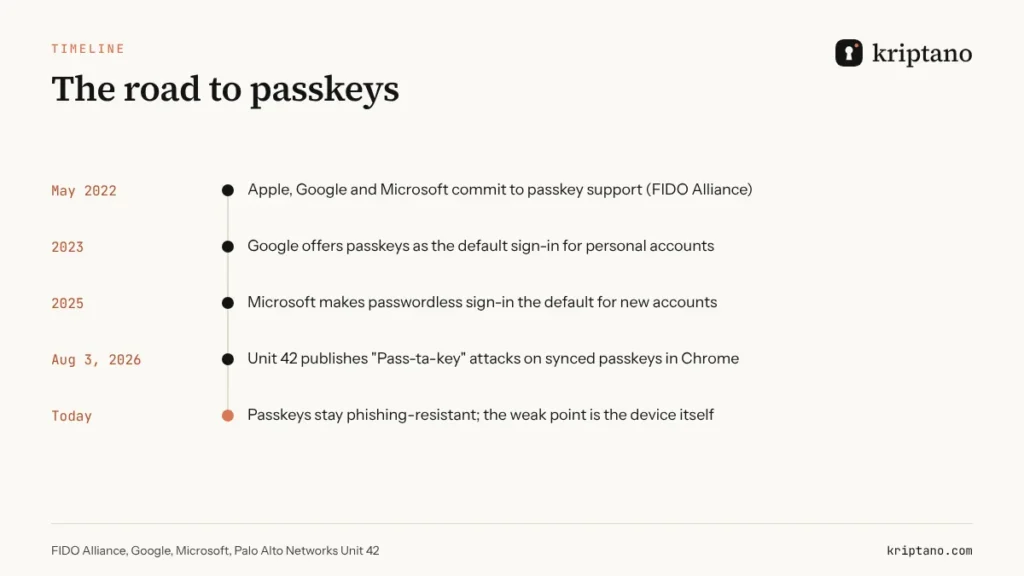
Searches for "chrome passkey vulnerability" exploded after Unit 42 published attacks on synced passkeys in August 2026. We explain what a passkey is, what the research actually showed, and where passwords still need protecting.
Two searches went through the roof this year. “What is a passkey” grew more than tenfold in France, Italy and Spain, and in the US “chrome passkey vulnerability” jumped by roughly 2,800% after researchers published attacks on passkeys synced in Chrome. So, are passkeys safe? Short answer: yes, safer than passwords – with one important caveat. This guide explains what a passkey is, what the passkey vulnerability research really required, and how to manage passkeys on Google and Microsoft accounts.
Contents
- What is a passkey and how does it work
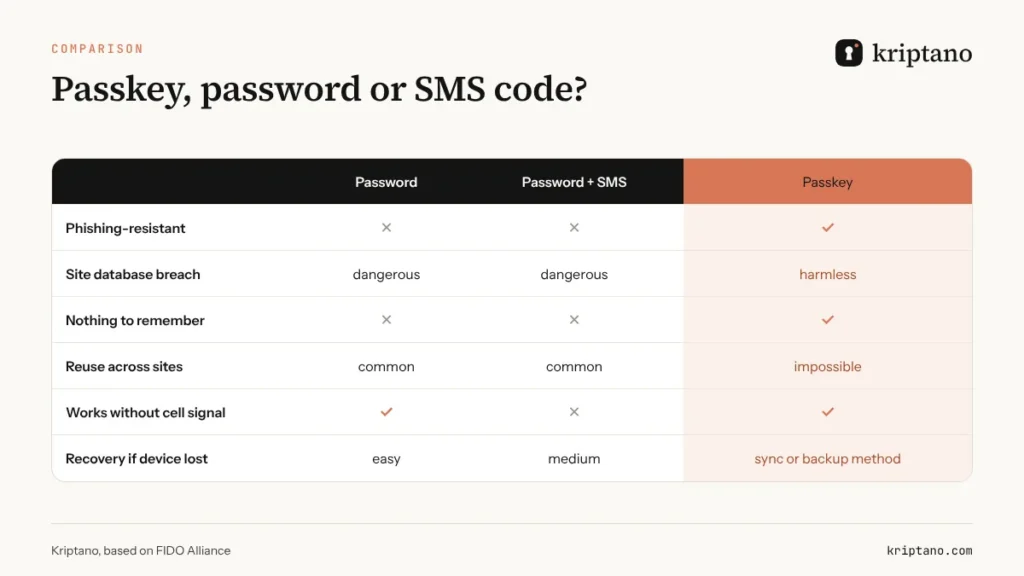
- Passkey vs password vs SMS code
- Are passkeys safe after the "Pass-ta-key" passkey vulnerability?
- How to manage or remove passkeys in Chrome and Microsoft
- 6 rules for safe passwordless sign-in
- Passkeys at work: where to start
- Where passkeys don't help: sharing access
- Frequently asked questions
What is a passkey and how does it work
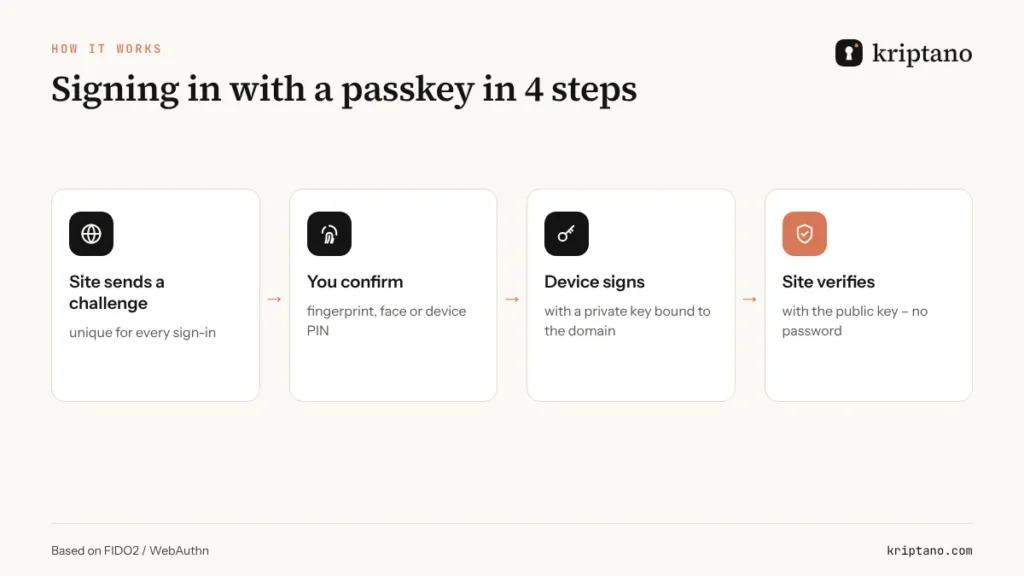
A passkey is a pair of cryptographic keys defined by the FIDO Alliance and the W3C WebAuthn standard. The private key stays on your device (or in a password manager that syncs it), and the public key goes to the site you register with. When you sign in, the site sends a challenge, your device signs it with the private key after you confirm with a fingerprint, face or device PIN, and the site checks the signature with the public key.
No password ever crosses the network, because there isn’t one. A breached site has nothing useful to leak – a public key is worthless to an attacker. And because each passkey is bound to an exact domain, a fake page at `signin-bank.info` can’t get your device to sign for `bank.com`. That’s why passkeys are phishing-resistant in a way no password can be.
Passkey vs password vs SMS code
Are passkeys safe after the “Pass-ta-key” passkey vulnerability?
In August 2026, Palo Alto Networks’ Unit 42 published three attack techniques against passkeys that Google Password Manager syncs in Chrome on Windows. None of them breaks the cryptography. They target the code around it: how Chrome stores device state locally, how it re-registers when that state disappears, and whether a site checks that the user really confirmed the sign-in. The most serious variant went after the master secret protecting all synced passkeys – the researchers found it in Chrome’s memory and, temporarily, in its diagnostic logs, which Google cleaned up after the report.
The key sentence in every write-up: each attack requires malware already running on your computer. No CVE was assigned and no in-the-wild exploitation was reported. In other words, a passkey still protects you from phishing and leaked passwords, but it doesn’t protect an infected computer – and neither does a password.
How to manage or remove passkeys in Chrome and Microsoft
The popular search “g.co/chrome/managing passkey” leads to Google’s help page. In Chrome you’ll find your passkeys under Settings → Autofill and passwords → Google Password Manager; on Android they live in your Google account settings. You can see which sites have a passkey and delete any you don’t need. To remove a passkey from a Microsoft account, open your account’s security settings and look under sign-in methods. Before deleting, make sure you still have another way in.
6 rules for safe passwordless sign-in
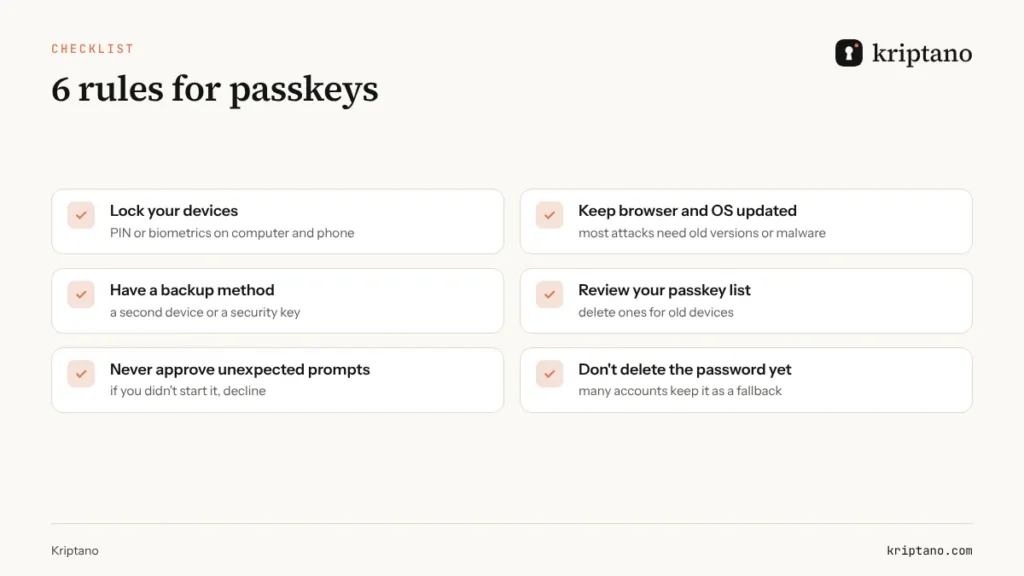
The last rule is easy to forget: as long as an account still has a password, attackers will try it. If that password is weak or reused, the passkey can’t help. Test it with the password strength checker and create a new one with the password generator.
A strong fallback password for a passkey account
Generated in your browser – never sent to the server.
More options
The strength test runs only in your browser. The breach check sends only the first 5 characters of the password’s SHA-1 hash to Have I Been Pwned (k-anonymity) – never the password.
Generated locally in your browser with the Web Crypto API (crypto.getRandomValues). Passwords are never sent to our server or stored – only your settings are remembered in this browser.
Passkeys at work: where to start
You don’t have to switch everything at once. Start with the accounts that would hurt most: admin accounts for Microsoft 365 or Google Workspace, your domain and DNS, online banking, e-commerce or ad platforms and your password manager. For admins, a hardware security key (FIDO2) is the best choice, because it doesn’t sync to the cloud and doesn’t depend on the browser.
Write down the boring parts too: who holds which security key, what happens when an employee loses a phone, and how a key is revoked when someone leaves.
Where passkeys don’t help: sharing access
A passkey is personal and tied to a device – which is a good thing. But real work involves sharing access all the time: guest Wi-Fi, a vendor portal, admin access for an outside developer, a shared social media account. Those passwords still travel, usually by email or chat, where they live on for years.
For those moments, use a one-time secret link: the content is encrypted in your browser, the recipient opens it once and the record is deleted. For onboarding employees or clients, see temporary passwords and login credentials; for comparing password managers, read Bitwarden vs 1Password in 2026.
Frequently asked questions
What is a passkey in simple terms?
A digital key stored on your device. Instead of typing a password, you confirm the sign-in with your fingerprint, face or device PIN, and the site verifies a signature – no password involved.
Are passkeys safe?
Yes. They can’t be guessed, can’t leak from a site’s database and don’t work on fake sites. Their security depends on your device, so keep it locked and updated.
What is the Pass-ta-key passkey vulnerability?
Three techniques published by Unit 42 in August 2026 against passkeys synced in Chrome on Windows. All require malware already running on the computer; the cryptography itself wasn’t broken.
How do I delete a passkey in Chrome?
Go to Settings → Autofill and passwords → Google Password Manager, choose the site and delete the passkey. Check that you have another sign-in method first.
What if I lose the phone with my passkeys?
If they’re synced (Google, iCloud or a password manager), sign in on your new device. If not, use your backup method or security key – which is why you should set one up in advance.
Can I send a passkey to a colleague?
No, and you shouldn’t. For shared access, use a password manager with sharing or send the password with a one-time link.
Access you have to share
Don’t email it. A one-time link deletes itself after reading, and you can see when it was opened.