File Encryption Made Simple: How to Password Protect Files, PDFs and ZIPs Before You Send Them
Most people encrypt a file correctly and then email the password right after it. How file encryption actually works, how to password protect files in Word, Excel, PDF and ZIP on Windows and Mac, why "ZipCrypto" is broken – and the simplest way to get the password (or the whole file) to the recipient.
Here is the most common file encryption mistake in business: someone carefully encrypts a spreadsheet of salaries, attaches it to an email – and types the password in the next line. Or sends it in a second email a minute later, to the same inbox. Anyone who gets into that mailbox gets both.
File encryption – and its everyday cousin, document encryption – is easy to do well once you know which tool to use and how to deliver the password. This guide explains the two kinds of encryption you’ll meet, shows how to password protect files in Word, Excel, PDF and ZIP on Windows and Mac, explains why the old “ZipCrypto” method is broken, and gives you a simple rule for sending encrypted files – plus a shortcut that avoids passwords altogether.
Contents
- Two kinds of file encryption – and why you need both
- How to password protect files, by file type
- Why ZipCrypto is broken
- The weakest link: getting the password to the recipient
- Is document encryption enough on its own?
- Receiving an encrypted file
- Document encryption rules for your team
- Which method for which situation?
- Frequently asked questions
Two kinds of file encryption – and why you need both
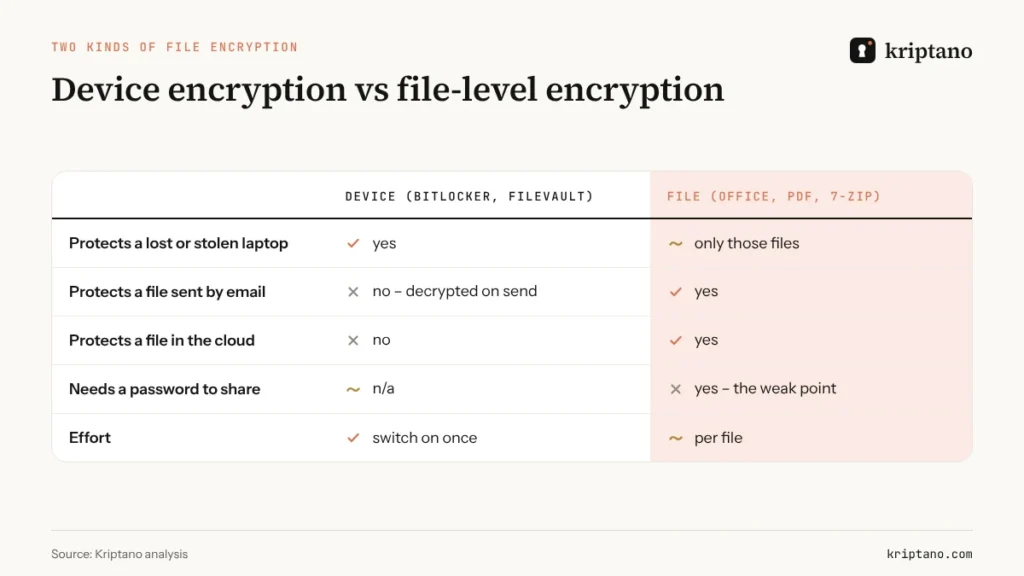
Device encryption – BitLocker on Windows, FileVault on Mac, built-in encryption on phones – protects everything on a device if it’s lost or stolen. It’s invisible while you work and should be switched on for every company laptop. But the moment you attach a file to an email or upload it to a cloud drive, it leaves the encrypted disk as a normal, readable file.
File-level encryption protects one file wherever it goes. You choose a password, the file is encrypted with it, and anyone without the password sees only scrambled data – in an inbox, a shared folder or a forgotten USB stick. This is what people usually mean by “password protect files”, and it’s the subject of the rest of this guide.
How to password protect files, by file type
Word, Excel and PowerPoint
Microsoft Office has document encryption built in. On Windows, open the file and go to File → Info → Protect Document (or Workbook/Presentation) → Encrypt with Password. On a Mac, use Review → Protect → Protect Document (or Protect Workbook) and set a password to open. Modern Office files use AES encryption, so a random password makes them very hard to crack.
One surprise: according to Microsoft’s own instructions, Word document passwords can be at most 15 characters long. That’s still plenty if the password is random – 15 characters from a generator, not a word with a number on the end. Also note that Word for the web can’t encrypt a document; you need the desktop app.
Note the difference between a password to open (encrypts the file) and a password to modify or “restrict editing” (doesn’t encrypt anything – anyone can still read it).
In Adobe Acrobat, use the Protect tool and choose to encrypt with a password; pick the option that requires a password to *open* the document. On a Mac, Preview can do it too: File → Export as PDF → Permissions (or Encrypt in older versions) and set an open password. If someone sends you a file and your reader says “this PDF is encrypted”, that’s this feature – you need the password they chose.
ZIP and 7z archives
Archives let you encrypt several files – or a whole folder – at once. Here the method matters more than anything:
- 7-Zip (Windows, free) and Keka (Mac) offer AES-256. Choose it explicitly when creating a ZIP; the 7z format uses AES-256 by default and can also encrypt file names.
- Windows’ built-in “Compressed (zipped) folder” doesn’t add passwords at all.
- The
zip -ecommand on Mac and Linux uses the legacy ZipCrypto method – which brings us to the next section.
Install 7-Zip or Keka
Both are free; 7-Zip is open source.
Right-click the files → Add to archive
Choose 7z, or ZIP if the recipient needs it.
Set Encryption method: AES-256
For 7z, also tick “Encrypt file names”.
Use a generated password
16+ random characters, or 5–6 random words – 7-Zip has no practical length limit.
Send the password by another channel
Ideally a one-time link that self-destructs after reading.
Whole folders and drives
For a folder you keep encrypted permanently, or a USB stick you hand to someone, use a container rather than an archive: BitLocker To Go for USB drives on Windows, an encrypted disk image from Disk Utility on Mac, or the open-source VeraCrypt on any platform.
Why ZipCrypto is broken
The original ZIP encryption, often called ZipCrypto or “traditional PKWARE encryption”, has been known to be weak since Eli Biham and Paul Kocher published a known-plaintext attack in 1994. Free tools such as bkcrack implement it today: with just 12 bytes of known content – a standard file header is often enough – they recover the internal keys and decrypt the archive without ever guessing the password.
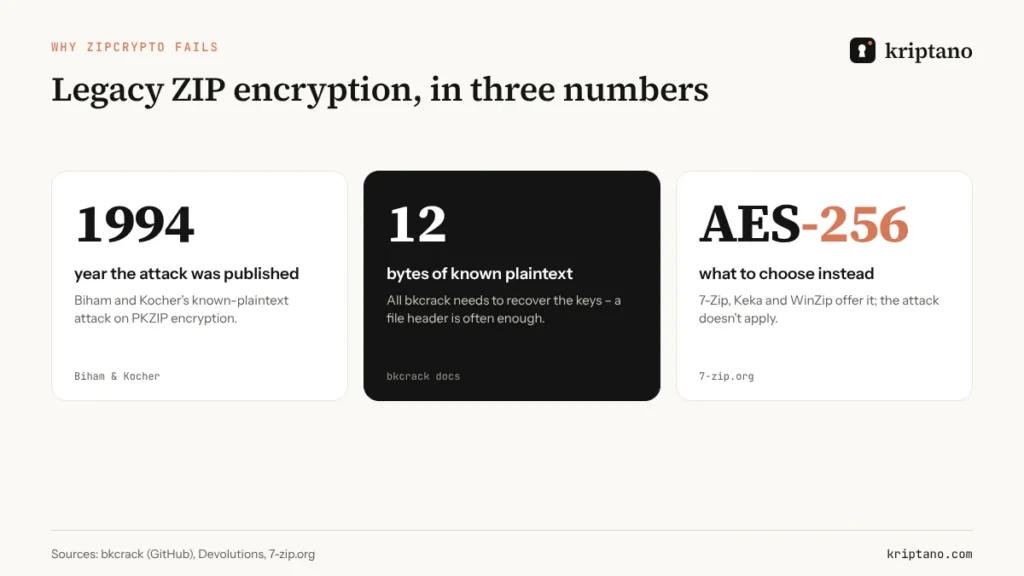
The problem is that ZipCrypto archives still get created every day, because many tools use it by default for compatibility. To check an archive you received or made, run 7z l -slt archive.zip and look at the Method line: “ZipCrypto” means weak, “AES-256” means strong. If you’re sending anything confidential as a ZIP, password protect files with AES-256 only.
The weakest link: getting the password to the recipient
Every file encryption method ends with the same problem: the recipient needs the password. How you deliver it decides whether the encryption was worth anything.
- Same email as the file – pointless. One compromised inbox exposes both.
- Second email to the same address – almost as bad, for the same reason.
- SMS – better, because it’s a separate channel, but texts sit on phones and in backups indefinitely, and plain SMS isn’t encrypted.
- Phone call – good for a one-off, awkward for long random passwords.
- One-time encrypted link – the password is readable once, then gone; nothing remains in email or chat.
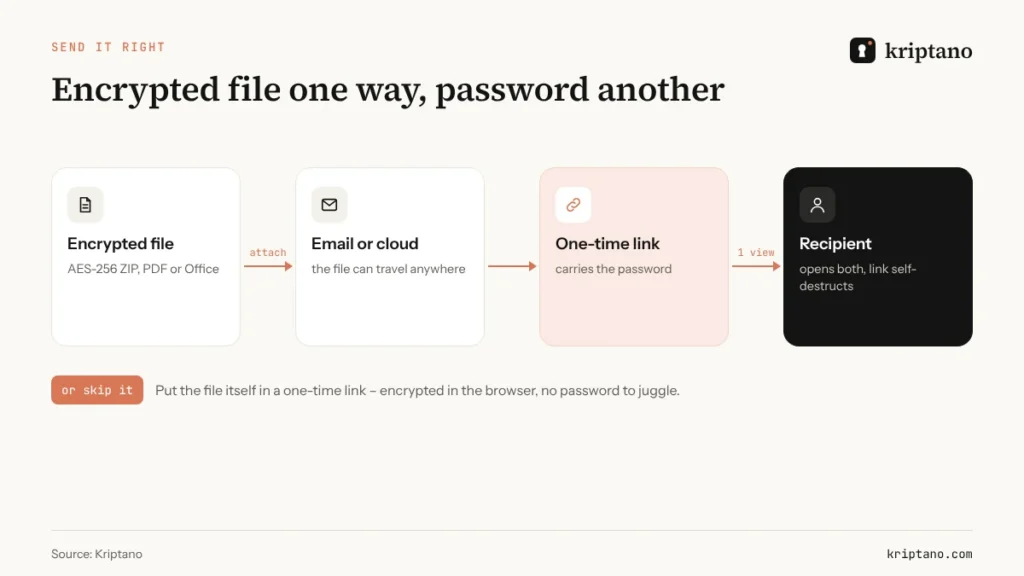
There’s an even simpler route for many cases: skip the password entirely and put the file itself in a one-time link. Kriptano encrypts files in your browser before upload, so the server never sees the content; the recipient downloads once, and the file is deleted. No password to choose, send or forget.
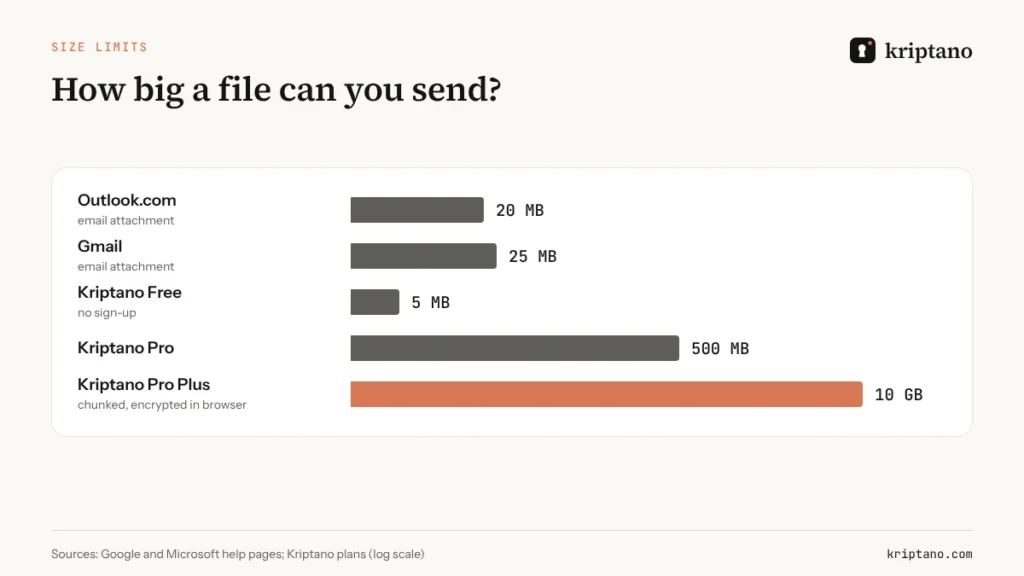
That also solves the size problem. Email attachments are capped at around 20–25 MB on Outlook.com and Gmail, so large scans, exports and design files end up on a public share link instead. Encrypted links handle much more – up to 10 GB per file on Kriptano Pro Plus.
For a deeper comparison of transfer methods – email, cloud links, portals and encrypted links – read how to send sensitive documents securely.
Is document encryption enough on its own?
Document encryption protects the content of a file. It doesn’t hide that the file exists, who sent it, or its name – “Salaries_2026_Q4.xlsx” tells a story before anyone opens it. It also doesn’t control what happens after the recipient decrypts it: a decrypted copy saved to a laptop is as exposed as any other file. So treat file encryption as one layer:
- Name files neutrally when they travel (“Document_4821.zip”), or use the 7z option to encrypt file names.
- Limit how long copies exist – a one-time link that deletes itself after download beats an attachment that lives in two mailboxes forever.
- Agree what happens next – “please save it to the HR system and delete the download”.
That’s why many teams combine both approaches: they password protect files that must be stored long-term, and use self-destructing links for files that only need to be delivered.
Receiving an encrypted file
When a file arrives password-protected, a little caution goes a long way:
- Check the sender – encrypted attachments are also a classic way to sneak malware past email scanners, because the scanner can’t look inside.
- Get the password through a channel you trust, not from the same email or a phone number printed in it – call a number you already know.
- Open it on an up-to-date device, and don’t enable macros in Office files you weren’t expecting.
- Store it encrypted or delete it when you’re done; don’t leave a decrypted copy in Downloads, where backup tools and sync clients will happily copy it somewhere else.
Document encryption rules for your team
A short policy beats a long one nobody reads. These eight rules cover most of what goes wrong with document encryption in small and mid-sized companies:
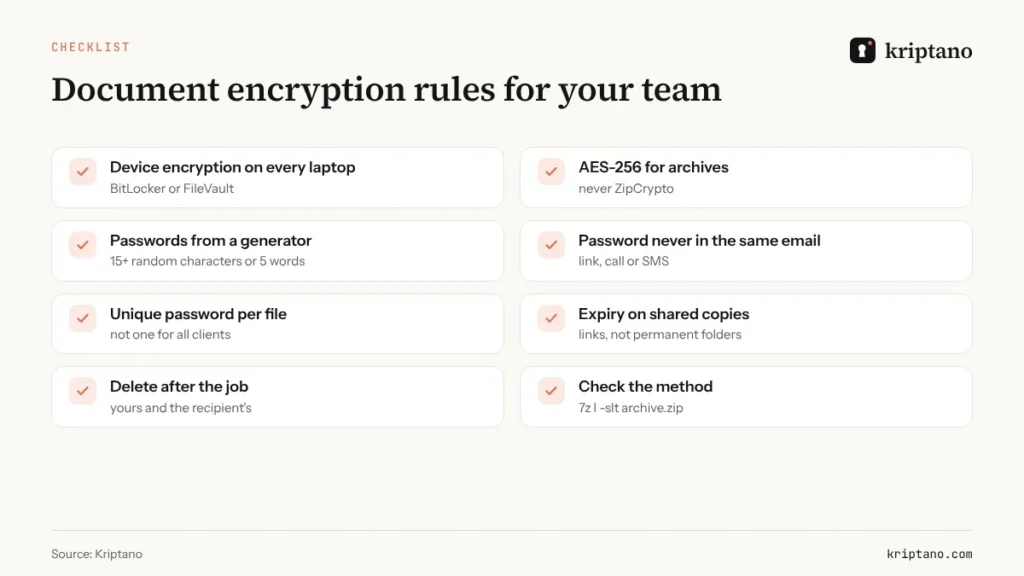
Print it, pin it in the shared drive, and add it to onboarding for anyone who handles client or employee files – the rules only work if new people learn them on day one. Two of them do most of the work. Generated passwords stop the “CompanyName2026!” password that every client gets – our strong password generator guide explains what to use. And “never in the same email” closes the gap that turns encryption into theatre. If you handle personal data under GDPR, UK GDPR or HIPAA, document both rules; regulators look for exactly this kind of measure, and our NIS2 and GDPR compliance guide shows how to write it down.
Which method for which situation?
| Situation | Best option | Why |
|---|---|---|
| Lost-laptop protection | BitLocker / FileVault | everything encrypted, no extra steps |
| One Office document to a client | Office “Encrypt with Password” + password by link | built in, AES, recipient needs only Office |
| Several files or a folder | 7-Zip / Keka with AES-256 | one archive, one password |
| Scans of ID, tax forms, payslips | one-time encrypted link | nothing left in either mailbox |
| Large files (exports, video, CAD) | encrypted link up to 10 GB | beyond email limits, deleted after download |
| Files you keep encrypted long-term | VeraCrypt or encrypted disk image | a vault, not a parcel |
Sending identity documents such as a Social Security card or passport scan? See our guide on how to send a Social Security number securely. For the mechanics of how browser-side encryption keeps a server blind, read our explainer on end-to-end encryption.
Frequently asked questions
What is file encryption?
File encryption scrambles a file’s contents with a key derived from a password, so only someone with the password can open it. It protects the file wherever it goes – in email, cloud storage or on a USB stick.
How do I password protect files on Windows?
For Office files, use File → Info → Protect → Encrypt with Password. For other files, use 7-Zip and choose AES-256. Windows’ built-in zipped folders can’t add a password.
How do I password protect a PDF?
In Adobe Acrobat, use the Protect tool and set a password to open the document. On a Mac, use Preview’s Export as PDF option and set an open password under Permissions or Encrypt.
Is a password-protected ZIP file secure?
Only with AES-256 encryption and a strong password. Legacy ZipCrypto encryption can be broken with a known-plaintext attack regardless of the password.
How should I send the password for an encrypted file?
Never in the same email. Use a one-time encrypted link, a phone call or another channel – or send the file itself through a one-time link so no password is needed.
What does “this PDF is encrypted” mean?
The sender used document encryption with a password to open. Ask them for the password through a trusted channel, not from the same email.
Skip the password juggling
Put the file – or its password – in a link that self-destructs after one download. Free, no sign-up.