Secure Email Providers Compared: Proton, Tuta, Gmail, Outlook – and When an Encrypted Mailbox Isn’t Enough
"Secure email" can mean four very different things – from basic TLS to true end-to-end encryption. Five providers compared, what an encrypted mailbox still leaks, how to pick a safe email provider for a business, and when to send a one-time link instead.
“Secure email” gets searched tens of thousands of times a month, and the results promise everything from “military-grade encryption” to “total privacy”. The truth is more useful: secure email can mean four very different things, and only one of them stops your provider from reading your messages. This guide explains those levels, compares five popular options, lists what even the best encrypted mailbox still leaks, and shows how to choose a safe email provider for a business – plus the cases where email is simply the wrong envelope.
Contents
- What "secure email" actually means
- 5 secure email options compared
- What an encrypted mailbox can't protect
- How to choose a safe email provider for business
- Setting up a secure email account
- When secure email is the wrong envelope
- Secure email in regulated work: health, finance and personal data
- Moving to a new secure email provider
- Secure email checklist for teams
- Frequently asked questions
What “secure email” actually means
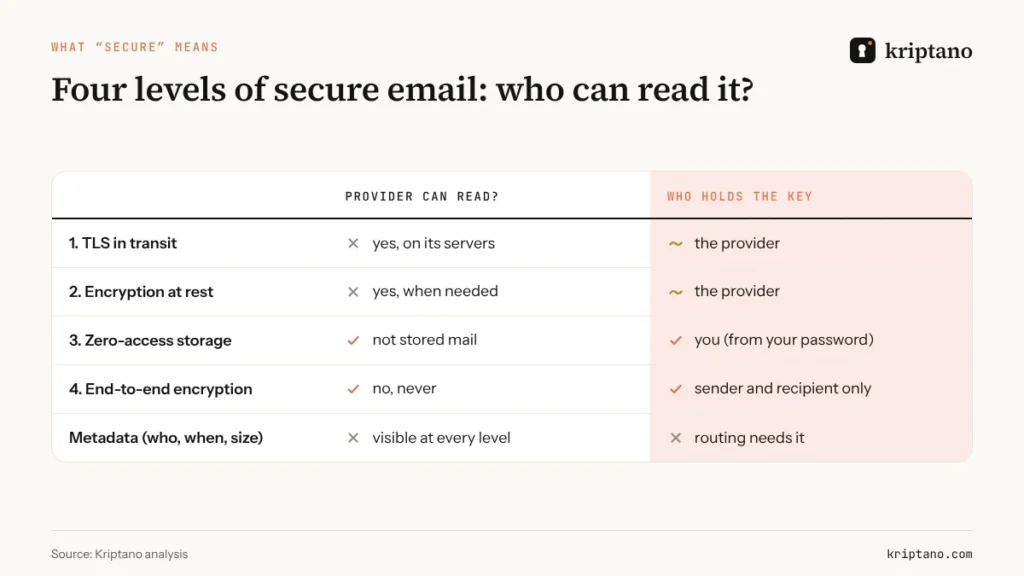
Every modern provider claims to be secure. The question to ask is: who can read the message, and when?
- TLS in transit. The connection between mail servers is encrypted, so nobody on the network can read it. The providers on both ends can, and the message is stored readable. This is standard for Gmail, Outlook and almost everyone.
- Encryption at rest. The provider encrypts its disks. Useful against stolen hardware, but the provider holds the keys and can decrypt when needed.
- Zero-access storage. Stored messages are encrypted with a key derived from *your* password, so the provider can’t read your mailbox later. Mail arriving from outside is still readable for a moment while it is being received.
- End-to-end encryption (E2EE). The message is encrypted on the sender’s device and decrypted only on the recipient’s. Nobody in between – including both providers – can read it.
If you want the mechanics behind level 4 – public keys, private keys and why the key exchange matters – read our explainer on end-to-end encryption. For the practical options inside your current mailbox, see how to send an encrypted email.
5 secure email options compared
Proton Mail – Switzerland
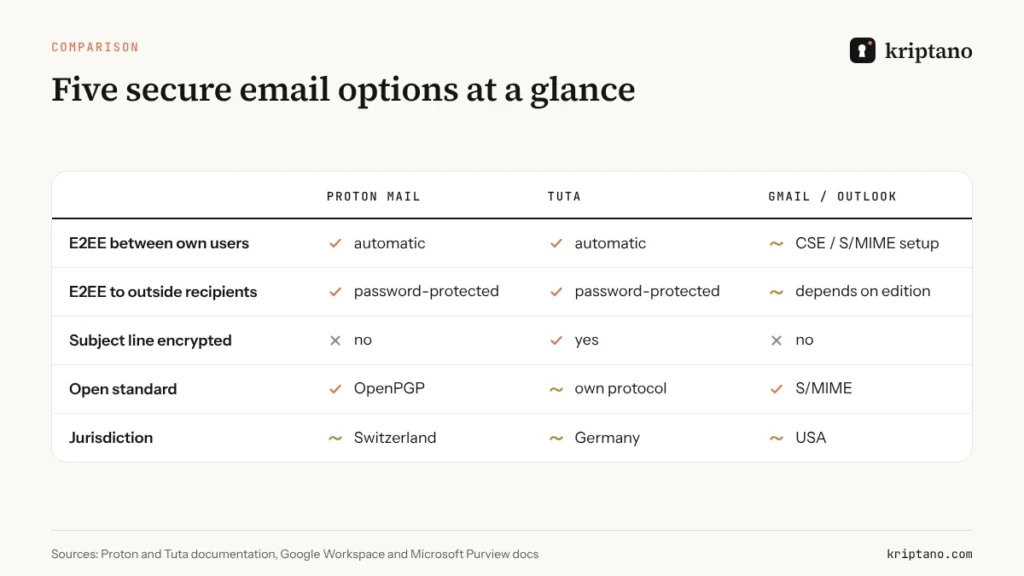
Proton Mail encrypts messages between Proton users end to end automatically and stores every message in your mailbox with zero-access encryption, including mail that arrives from outside. To reach someone on Gmail or Outlook with full encryption, you can send a password-protected email: the recipient opens it on a Proton page with a password you share separately. Proton’s own support documentation notes that subject lines are not end-to-end encrypted – a deliberate trade-off that keeps search working.
Tuta – Germany
Tuta (formerly Tutanota) uses its own encryption protocol rather than OpenPGP and encrypts more of each message by default – body, attachments and subject line – along with your contacts and calendar. Like Proton, it reaches outside recipients through password-protected messages. The trade-off is interoperability: you can’t exchange PGP-encrypted mail with people on other services.
Mailbox.org – Germany
Mailbox.org is a privacy-focused provider built on open standards. It offers PGP encryption in the web interface and an option to encrypt incoming mail with your own PGP key, effectively turning a standard account into an encrypted mailbox. It suits people who already use PGP or want standard IMAP access.
Gmail with client-side encryption
Consumer Gmail is level 1–2: TLS plus encryption at rest, with Google holding the keys. Higher Google Workspace editions add client-side encryption (CSE), where the organization controls the keys through its own key service. It’s powerful for enterprises with an IT team, and not something a small business switches on in an afternoon.
Outlook and Microsoft 365
Microsoft 365 offers Microsoft Purview Message Encryption and S/MIME depending on licence and setup. Purview lets you send protected messages that external recipients open through a Microsoft portal, with restrictions like “do not forward”. As with Gmail, the strength depends on configuration and edition.
What an encrypted mailbox can’t protect
Even a perfect encrypted mailbox leaves some things exposed. Before you treat any secure email provider as a vault, know its limits:
- Metadata. Sender, recipient, time and size are visible to the servers that route the message. On some providers, the subject line is too.
- The other side’s copy. When you email someone on Gmail, Gmail keeps its copy – your zero-access storage doesn’t change theirs.
- Forwarding and replies. The recipient can forward your message in plain form, and quoted text travels with every reply.
- Time. Email is built to be kept. A password or a Social Security number in a message stays sensitive for years, in every backup.
- Impersonation. Encryption doesn’t stop a criminal from writing *to* you pretending to be your CEO or your supplier.
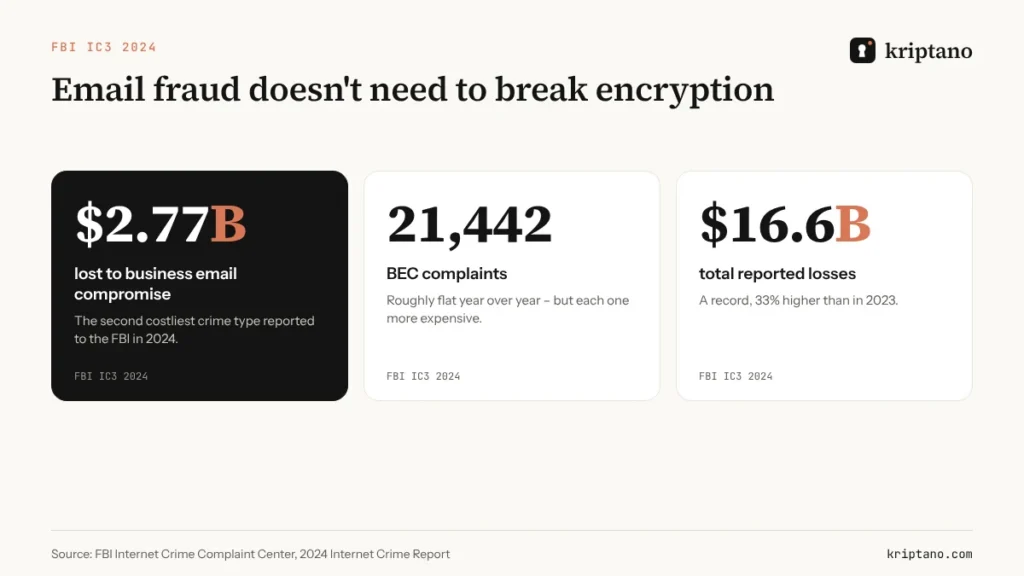
That last point costs more than any interception. The FBI’s Internet Crime Complaint Center recorded $2.77 billion in business email compromise losses in 2024 – the second costliest crime type it tracks. None of those attacks needed to break encryption; they needed a convincing message and a payment request.
How to choose a safe email provider for business
For an individual, the choice often comes down to Proton or Tuta. For a company, a safe email provider also has to fit how you work: shared mailboxes, legal holds, offboarding and the people you exchange mail with every day.
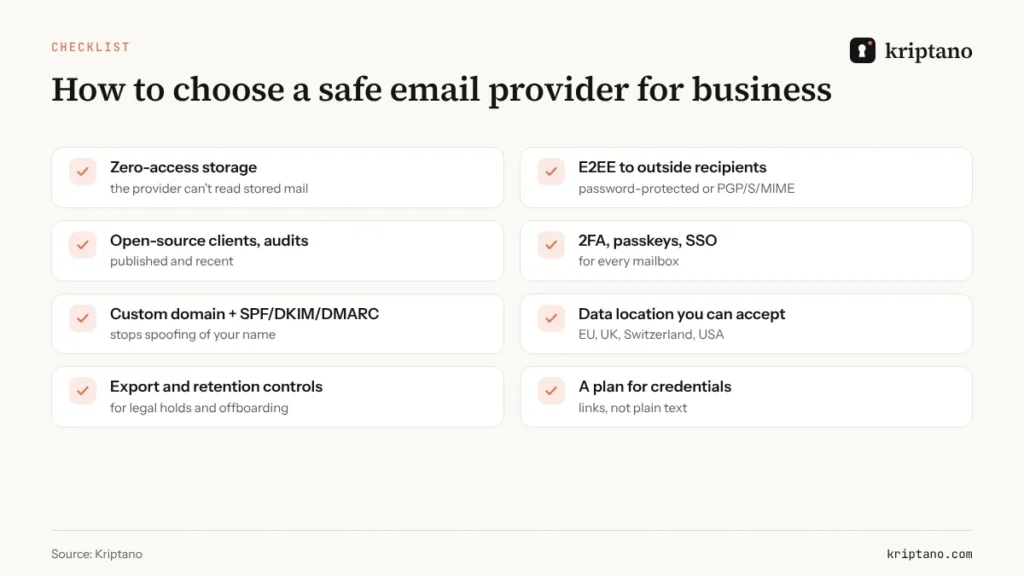
Run a small pilot before you commit: move two or three people, live with the new provider for a month, and note what breaks – calendar invites, shared mailboxes, scanners that send to email, accounting software that expects IMAP. Two items are easy to miss. SPF, DKIM and DMARC on your own domain make it much harder for criminals to send email that looks like it came from you – they protect your customers more than your mailbox. And a plan for credentials matters because even a company on Proton will receive passwords from clients using Gmail; deciding how those arrive is part of choosing secure email.
Setting up a secure email account
Whichever provider you choose, these steps make the account itself hard to take over – which matters more than encryption if your password ends up in a breach:
Use a long, unique passphrase
Generate it – our strong password generator guide shows how long is enough.
Turn on a passkey or app-based 2FA
Avoid SMS codes where you can; see our OTP guide for why.
Store recovery codes offline
Printed and sealed, or in your password manager – not in the same mailbox.
Add your own domain with SPF, DKIM and DMARC
Protects your name from spoofing and makes moving providers easier later.
Decide how secrets travel
Messages by email; passwords and identity documents by one-time link.
Need help with the first two steps? Read our strong password generator guide and our explanation of the one time password (OTP).
When secure email is the wrong envelope
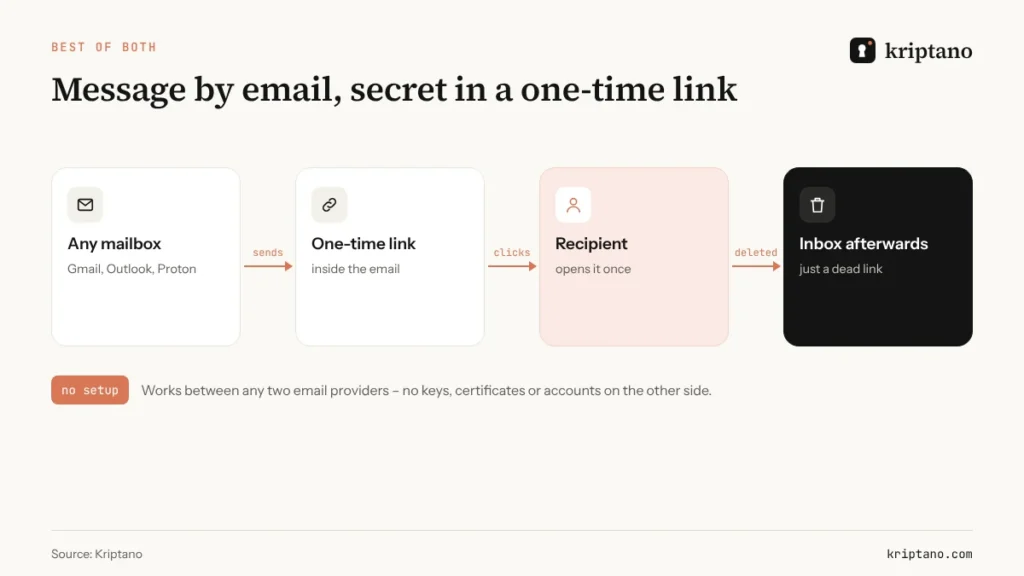
Some information shouldn’t sit in any mailbox, encrypted or not, because nobody needs it there tomorrow: a login password, a recovery code, a Social Security number, a bank detail for a one-off transfer. Here the best tool is a one-time encrypted link inside an ordinary email. The email carries the context; the link carries the secret; after one view, the link is dead and the inbox holds nothing worth stealing.
It works between any two providers – Gmail to Outlook, Proton to a hospital’s ancient Exchange server – without keys, certificates or accounts on the other side.
Sending identity data to HR, payroll or an accountant? Our guide on how to send a Social Security number securely covers W-9s, tax documents and bank details. For clinics and patients, see how to email medical records securely; for contracts and scans, how to send sensitive documents securely.
Already on Proton or Tuta?
Their password-protected emails work well – just never send the password in the same email. Use a phone call, or put the password itself in a one-time link.
Secure email in regulated work: health, finance and personal data
Regulation rarely names a provider, but it does ask you to protect personal data in proportion to the risk. In the US, HIPAA treats encryption as an “addressable” safeguard and expects a business associate agreement with any vendor that handles protected health information. In the UK and EU, GDPR and UK GDPR require “appropriate technical and organisational measures”, and the ICO expects organisations to consider encryption when they send personal data. For regulated teams that means three practical things:
- Pick a secure email provider that will sign the agreements you need (a BAA in US healthcare, a data processing agreement under GDPR).
- Document which data may travel by email and which must use another channel, such as a portal or a one-time link.
- Keep evidence. An audit log that shows when a document or password was opened is easier to defend than “we think they received it”.
Our guide to NIS2 and GDPR compliance includes a seven-point procedure that covers exactly these decisions.
Moving to a new secure email provider
Switching to an encrypted mailbox is easier than it sounds if you plan the order:
- Set up your own domain first if you don’t already use one, so your address survives the move.
- Import old mail with the provider’s migration tool – but consider leaving years of old messages, and the passwords buried in them, behind.
- Update recovery addresses for banks, cloud services and your password manager.
- Tell regular contacts how to send you sensitive information from now on.
- Search the old mailbox for passwords before you close it, and change anything you find.
Secure email checklist for teams
- Choose the encryption level you actually need: zero-access storage for most businesses, E2EE for sensitive correspondence.
- Protect every account with passkeys or app-based MFA, and enforce it for the whole team.
- Configure SPF, DKIM and DMARC before you switch, not after.
- Write down which data never goes into email – passwords, ID numbers, health data – and what to use instead.
- Train people to verify payment changes by phone, whatever provider you use.
- Review the setup once a year: new staff, new tools and new regulations change what “secure enough” means.
Frequently asked questions
What is the most secure email provider?
For most people, Proton Mail and Tuta offer the strongest protection: zero-access storage and automatic end-to-end encryption between users. Tuta also encrypts subject lines; Proton is compatible with OpenPGP.
Is Gmail a secure email service?
Gmail encrypts mail in transit and at rest, but Google holds the keys. Higher Google Workspace editions add client-side encryption, where your organization controls the keys.
What is an encrypted mailbox?
An encrypted mailbox stores your messages encrypted with a key only you control, so the provider cannot read them later. It does not hide metadata such as who you wrote to and when.
Can I send a secure email to someone who uses Gmail?
Yes. Proton and Tuta can send password-protected messages to any address, and Outlook offers Purview encryption. A simpler option for a password or ID number is a one-time encrypted link inside a normal email.
Does a safe email provider stop phishing and fraud?
Not by itself. Encryption protects message content; business email compromise relies on impersonation. SPF, DKIM, DMARC, MFA and verifying payment changes by phone matter as much as the provider.
Should I send passwords through secure email?
It’s better than plain email, but the password still stays in two mailboxes. Send passwords through a one-time link that self-destructs after reading.
Keep secrets out of every mailbox
Paste a password or a document into a one-time link and send the link by email. Free, no sign-up.