How to Share Passwords Securely: The Complete Guide for Teams and Businesses
Why email, chat and SMS are the wrong place for credentials, how one-time encrypted links work, and a 5-step process to share passwords securely with colleagues, clients and contractors.
Contents
- Why you need to share passwords securely
- Why email, chat and SMS cannot share passwords securely
- Password manager or one-time link: two ways to share passwords securely
- How encrypted one-time links help you share passwords securely
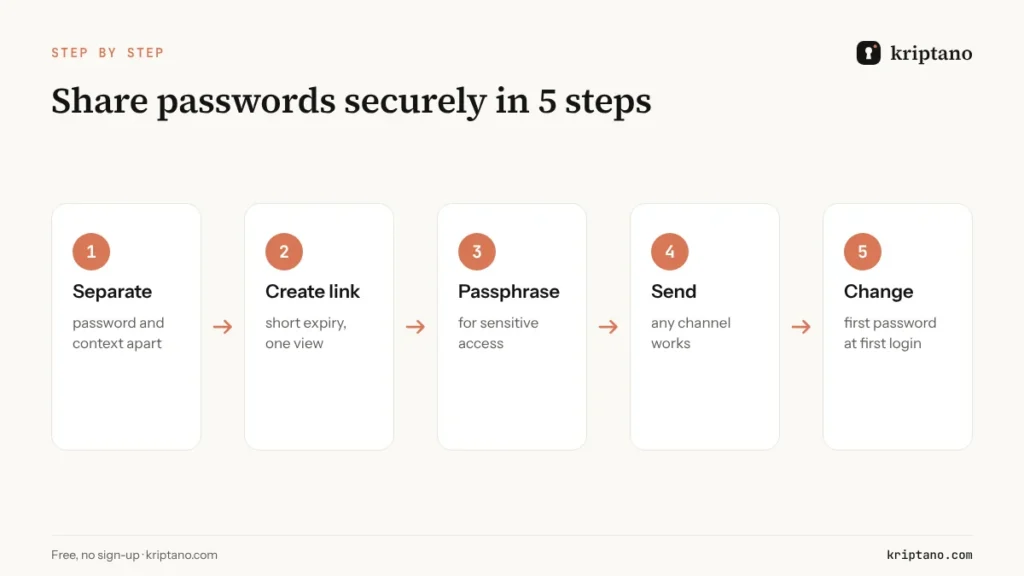
- How to share passwords securely in 5 steps
- How to receive a password from a client securely
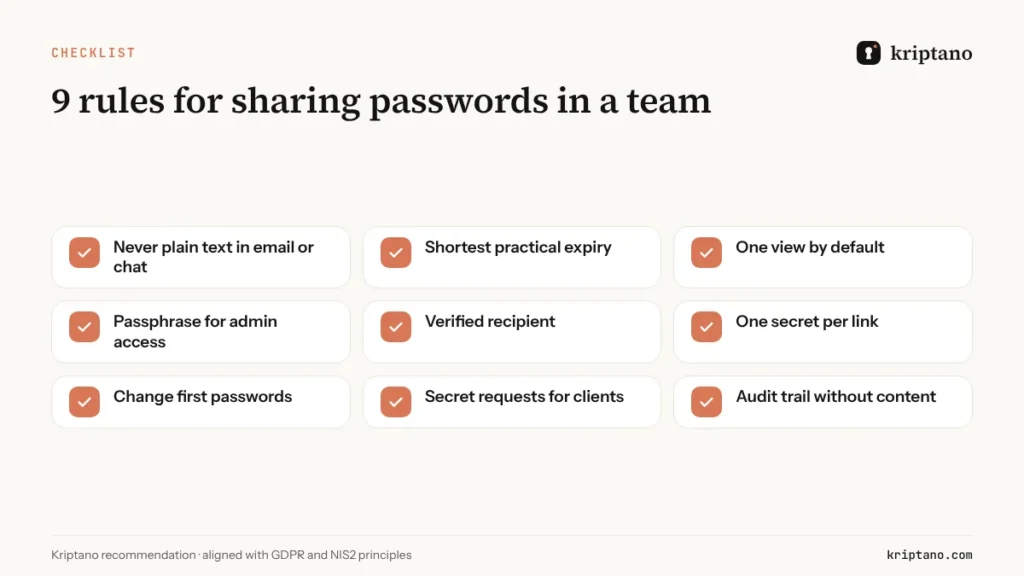
- 9 rules to share passwords securely as a team
- Common mistakes that stop teams from sharing passwords securely
- Share passwords securely in a team: roles, 2FA and an audit log
- Automating password delivery with the API
- Is email ever acceptable?
- Free or a paid plan?
- Frequently asked questions
Every company has to share passwords securely at some point: a new hire needs a first login, a client needs access to a staging server, a contractor needs the Wi-Fi key or an API token. Most of these credentials still travel by email, Slack, Teams or text message – and stay there for years. This guide explains why that is risky, how encrypted one-time links solve the problem, and gives you a 5-step process your whole team can follow, from sending a password to receiving one from a client.
It is the central article of our series on secure data exchange. Where a topic deserves more depth, we link to the detailed guides on one-time secret links, sending sensitive documents, NIS2 and GDPR compliance and encrypted email.
Why you need to share passwords securely
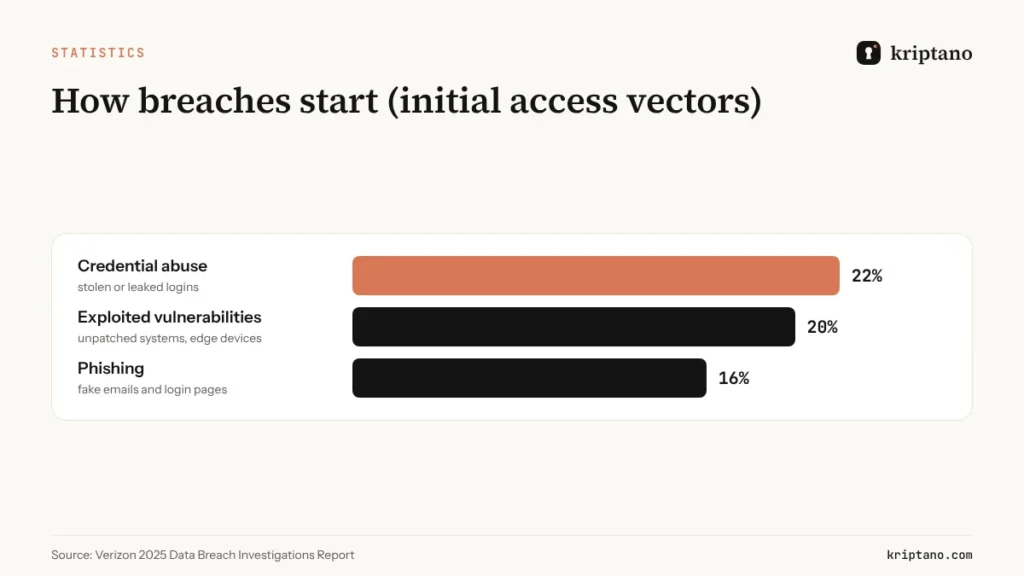
Stolen credentials are still the most common way attackers get into a company. According to the 2025 Verizon Data Breach Investigations Report, credential abuse was the leading initial access vector for the second year in a row and the human element was involved in 60% of breaches. Attackers rarely have to break encryption – they search mailboxes, chat histories and shared drives for the word “password”.
The weak spot is not the password itself, but the trail it leaves – which is why the goal is not just to send a password, but to share passwords securely. A password sent once by email lives on in the sender’s sent folder, the recipient’s inbox, both providers’ servers, backups, archives and every device that syncs that mailbox. It stays there long after the account has been handed over – until somebody finds it.
Why email, chat and SMS cannot share passwords securely
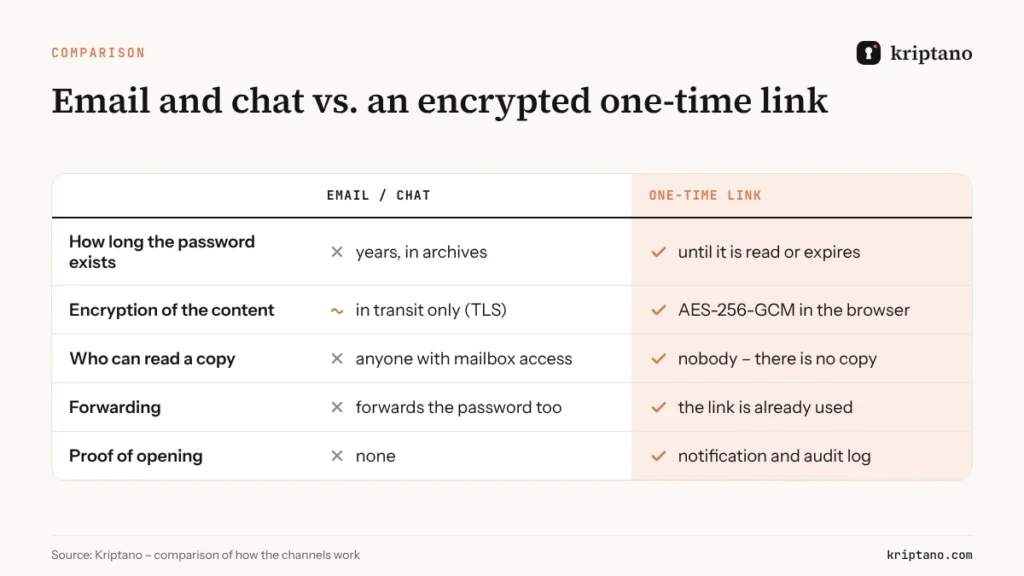
Modern email is usually encrypted in transit (TLS), so the classic picture of someone “intercepting” the message is not the main problem. The problem is persistence and reach: messages are stored, synced, searched, forwarded and backed up – far outside your control.
- Inboxes and chats are searchable. An attacker with access to one account searches for “password”, “login” or “credentials” first.
- Messages are forwarded – and the password goes with them, often to people who should never see it.
- Copies live in backups and archives for years, including on personal phones.
- There is no trace of who read the password and when.
- Screenshots of credentials end up in photo galleries and cloud sync.
Chat tools are not better, and you cannot share passwords securely in a channel that keeps history forever. Slack, Teams and WhatsApp keep history on every device, and a shared channel can grow from five members to fifty without anybody remembering the password posted in it two years ago.
Password manager or one-time link: two ways to share passwords securely
Before choosing a method, separate two very different situations:
- Ongoing shared access inside the team – for example the login of a social media account five colleagues use every day. This belongs in a password manager with shared vaults (1Password, Bitwarden, Keeper and similar). Access can be granted and revoked, and the password never has to be “sent”.
- A one-off handover – a first password for a new employee, credentials for a client or contractor outside your password manager, a recovery code, a PIN, an API key for a partner. Here a one-time encrypted link is the right tool: the recipient reads the secret once and nothing remains.
Most teams need both to share passwords securely, because each covers a situation the other does not. The mistake is using neither and falling back to email “just this once”.
| Situation | Best method | Why |
|---|---|---|
| Shared team account used daily | password manager (shared vault) | access can be revoked, nothing to send |
| First password for a new hire | one-time link + forced change at first login | nothing stays in HR or IT inboxes |
| Credentials for a client or contractor | one-time link with passphrase | recipient needs no account or app |
| Password you need from a client | secret request | the client types it into an encrypted form |
| API keys and tokens for a partner | one-time link or API | the key is not kept in chat history |
| Automated onboarding from your own system | Kriptano API | no readable password in logs or tickets |
How encrypted one-time links help you share passwords securely
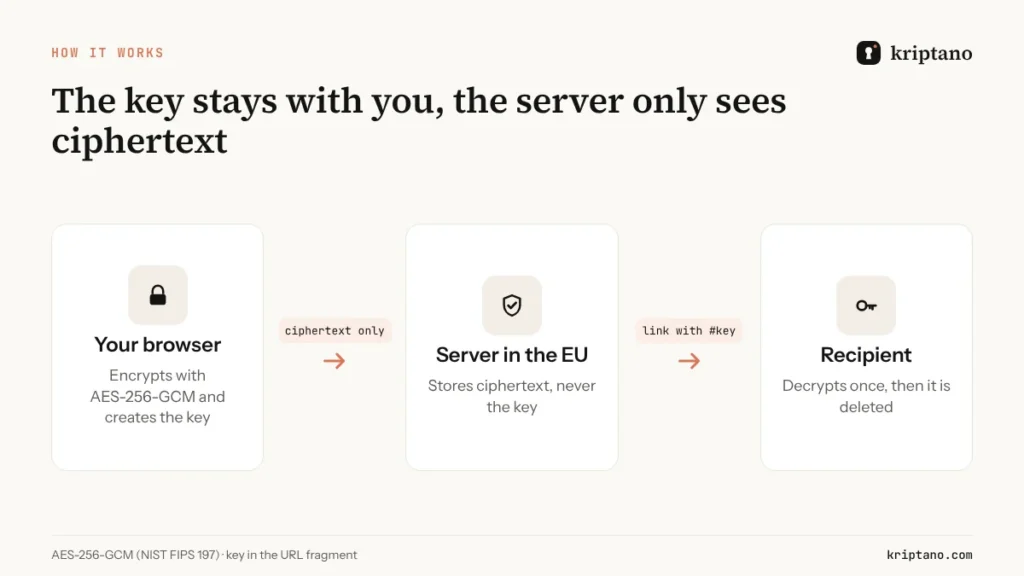
A good one-time link is more than “a message that self-destructs”. What matters is where the secret is encrypted and who holds the key. Kriptano uses a zero-knowledge model in which the server never sees your secret:
- You type the password on the page and your browser encrypts it with AES-256-GCM, the standard published as NIST FIPS 197.
- The decryption key is created in your browser and placed in the part of the link after the # sign (the fragment). Browsers never send the fragment to the server.
- Only the encrypted blob is stored on the server – without the key, it is meaningless.
- The recipient opens the link, their browser downloads the blob and decrypts it with the key from the fragment.
- Right after opening, the blob is deleted. Unopened secrets are deleted when the expiry you chose runs out.
For sensitive credentials you can add a passphrase and tell the recipient over a second channel, such as a phone call. The key is then derived with PBKDF2 using 600,000 iterations, which makes guessing slow and expensive. A deeper explanation, including the difference between a one-time link and a one-time password (OTP), is in our guide to one-time secret links.
How to share passwords securely in 5 steps
This is the process we recommend to every team that wants to share passwords securely without slowing anyone down. It takes less than a minute and needs no installation – the recipient does not need an account either.
Separate the secret from the context
Put only the password in the link; send the username and system address in a different message.
Create the link
Paste the password, set a short expiry and a single view.
Add a passphrase for sensitive access
Tell it to the recipient by phone or a second channel.
Send the link through any channel
Email, chat or SMS – after it is read, the link reveals nothing.
Change temporary passwords
Ask the recipient to change a first password at first login.
Even when you share passwords securely, stay alert: if the recipient reports that the link “does not work”, someone has already opened it. Treat that as a signal: change the password and find out who had access to the channel.
How to receive a password from a client securely
Often the problem runs the other way: you need credentials from a client – hosting, a web shop, an accounting tool. The client usually sends them by email, and they stay in your inbox, in your ticket system and on your phone.
A secret request turns this around. You create a request link and send it to the client. On that page the client types the password, their browser encrypts it with your public key (RSA-OAEP), and you receive it in your account to read once. The password never travels by email, and the client does not need an account or app. Secret requests are available from the Start plan; the same mechanism also works for files, which we cover in the guide on sending sensitive documents securely.
9 rules to share passwords securely as a team
A tool is only part of the solution. To share passwords securely every time, these rules work as a short internal policy you can paste into your onboarding documentation:
- Never send passwords by email, chat or SMS in plain text – send a one-time link instead.
- Use the shortest practical expiry – hours, not weeks.
- One view by default; more views only if several people really need the same secret.
- Add a passphrase for admin, financial and production access and share it by phone.
- Verify the recipient before sending – the link is only as safe as the address it goes to.
- One secret per link – separate links for separate systems.
- Force a change of first passwords at first login.
- Request credentials from clients with a secret request, not by email.
- Keep an audit trail of who sent what and when (without the content).
Common mistakes that stop teams from sharing passwords securely
Most password incidents are caused by habits, not by weak encryption. These are the mistakes we see most often:
- Username, URL and password in one message. Whoever gets the message has everything needed to log in.
- Passwords in tickets and tasks. Help desks and project tools keep history, and many people can read it.
- Long expiry “just in case”. A link valid for a month is a target for a month.
- One shared login for several people. After an incident nobody knows who did what. Give each person their own account.
- Passwords read out on a speakerphone in an open office, or dropped into a group chat “for a minute”.
- Recovery codes and MFA backup codes in email. They are as sensitive as the password itself.
Share passwords securely in a team: roles, 2FA and an audit log
When many people send credentials, you need shared rules and visibility. In Kriptano’s Pro and Pro Plus plans team members send secrets from one account, and team roles separate responsibilities: the owner manages the plan and billing, administrators invite and remove members, enforce two-factor login for the whole team and manage webhooks, and members send secrets and requests but see only their own events in the audit log.
The audit log records who sent a secret, when it was opened and when it was deleted – never the content, which we cannot see anyway. It can be exported as CSV for internal controls, ISO 27001 audits and NIS2 reviews. With webhooks, your SIEM or ticket system is notified the moment a secret is opened. How these records support GDPR and NIS2 requirements is explained in the guide on NIS2 and GDPR compliance.
Automating password delivery with the API
To share passwords securely at scale, developers and IT teams can create one-time links from scripts and internal tools via the REST API. A typical case is onboarding: your system creates the account, generates a one-time link with the initial password and emails it to the new user – the password is never stored anywhere in readable form. You can encrypt the secret yourself before sending it, so the server never sees the content, or send plain text and let the API encrypt it without storing the key. Documentation and examples are on the API page.
Is email ever acceptable?
Email is fine for the link, not for the password: you can share passwords securely by email only if the email carries a one-time link instead of the password itself. If your organisation requires encrypted email for certain documents, S/MIME or PGP can work between partners who have set them up – but they protect the message, not the inbox it ends up in. We compare all options in the guide on sending encrypted email.
Free or a paid plan?
For occasional use, the free one-time link is enough – no registration needed. When your team needs to share passwords securely every day, you need more: longer expiry, multiple views, encrypted attachments, read notifications, secret requests, a team with roles, enforced 2FA, an audit log, API access and webhooks. All plans use the same encryption; they differ in volume and business features. Current prices are always on the pricing page.
Free
For the occasional password, no sign-up.
$0€0
forever
Try for free- 8 secrets per month per IP address
- Lifetime up to 7 days
- 1 view per link
- Encrypted attachments up to 5 MB
- Extra passphrase to open
- QR code for the link
- Password generator + generator API
- SSO login: Google + Microsoft
Start
For freelancers and small offices.
$6€6 $4.80€4.80 / mo
billed monthly billed yearly: $57.60€57.60
Choose Start- 2,000 secrets per month
- Lifetime up to 30 days
- Up to 10 views per link
- Encrypted attachments up to 50 MB
- 2 GB attachment storage
- Email notification when a secret is opened
- Password generator + generator API
- SSO login: Google + Microsoft
- Two-factor login (authenticator app)
- Up to 10 secret requests (clients send data to you)
Most popular
Pro
For agencies, IT and accounting teams.
$24.90€24.90 $19.90€19.90 / mo
billed monthly billed yearly: $238.80€238.80
Choose Pro- 30,000 secrets per month
- Lifetime up to 90 days
- Up to 50 views per link
- Encrypted attachments up to 500 MB
- 20 GB attachment storage
- Email notification when a secret is opened
- Password generator + generator API
- SSO login: Google + Microsoft
- Two-factor login (authenticator app)
- Up to 1,000 secret requests (clients send data to you)
- Automatic delivery of secrets and requests by email
- API access and integrations
- Your logo and colors
- Team of up to 5 members
- Audit log with CSV export
- Webhooks (up to 10) with HMAC signatures
- Team roles and enforced 2FA
Pro Plus
Your domain, your brand and larger teams.
$62.90€62.90 $49.90€49.90 / mo
billed monthly billed yearly: $598.80€598.80
Choose Pro Plus- Unlimited secrets
- Lifetime up to 365 days
- Up to 100 views per link
- Encrypted attachments up to 10 GB
- 1,000 GB attachment storage
- Email notification when a secret is opened
- Password generator + generator API
- SSO login: Google + Microsoft
- Two-factor login (authenticator app)
- Unlimited secret requests
- Automatic delivery of secrets and requests by email
- API access and integrations
- Your logo and colors
- Team of up to 50 members
- Audit log with CSV export
- Unlimited webhooks with HMAC signatures
- Team roles and enforced 2FA
- Unlimited custom domains (e.g. secrets.your-company.com)
- Send email from your own domain
- Your own SMTP server
- Geo-blocking and IP allowlist
- No Kriptano branding (white label)
All prices include VAT or sales tax. Bank transfer offers are at the same final price. Subscription by card, PayPal, Apple Pay or Google Pay via Paddle – or bank transfer against an offer. Cancel anytime.
Frequently asked questions
What is the best way to share passwords securely?
To share passwords securely for ongoing team access, use a password manager with shared vaults. For a one-off handover, use an encrypted one-time link with a short expiry and a passphrase shared by phone. Never send the password in plain text by email or chat.
Is it safe to send a password by email?
Not in plain text – email alone cannot share passwords securely. Even with TLS, the password stays in both mailboxes, on the providers’ servers and in backups for years. Send a one-time link instead – after it is opened, only a useless link remains in the inbox.
Can Kriptano read my password?
No. The secret is encrypted in your browser and the key is only in the part of the link after #, which browsers do not send to the server. The server stores ciphertext only and deletes it after the first view.
How do I send a password to a client who has no account?
Create a one-time link and send it by any channel – that is the easiest way to share passwords securely with people outside your company. The client just opens it in a browser – no account, app or installation is required.
How do I get a password from a client securely?
Send a secret request. The client types the password into an encrypted form and you read it once in your account. It never travels by email.
What happens if someone else opens the link first?
The intended recipient will see that the secret no longer exists. That tells you the link was intercepted – change the password and send a new link with a passphrase.
Can I see who opened a shared password?
You get a read notification, and in Pro and Pro Plus the audit log records when each secret was opened. Webhooks can notify your own systems in real time.
Share your first password securely
Free, no sign-up. Encrypted in your browser and deleted after it is read.